You open the terminal and the text Verboo Code prints in gray disappears into your light background. Or the other way around: the dark scheme you have used for years makes the diff unreadable. Verboo Code fixes this with one command: /theme opens a picker with a live preview, saves your choice, and keeps the theme across sessions. Below are the steps, the six themes, where the preference is stored, and what to do when colors come out wrong.

/theme: open, confirm, save. The ANSI branch fixes terminals without true color.How do you change the terminal theme in Verboo Code?
Run /theme inside a session. The command opens a picker with the available themes, and as you move the selection it applies the theme as a live preview, without leaving the screen. Enter confirms and writes, Esc cancels and returns to the previous theme. On confirm, Verboo Code answers with Theme set to <theme>.
/theme

  Theme
  Choose the text style that looks best with your terminal

  Dark mode
  Light mode
  Dark mode (colorblind-friendly)
  Light mode (colorblind-friendly)
  Dark mode (ANSI colors only)
  Light mode (ANSI colors only)

Theme set to dark
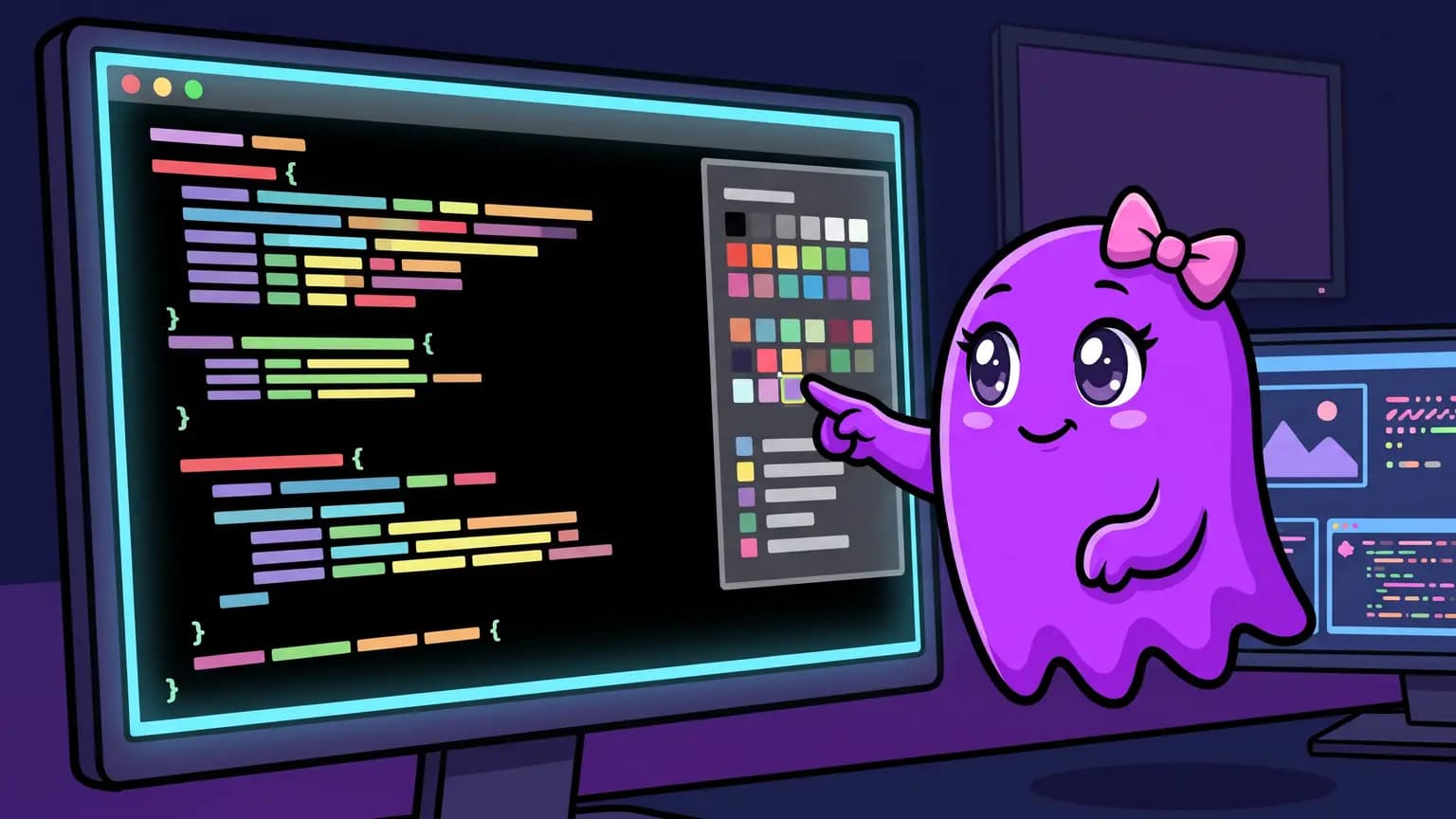
The picker also draws a sample diff (demo.js) right below the list, so you can see how the addition, removal, and highlight colors look before confirming.
Which themes does /theme offer?
Six fixed themes, plus an automatic mode when your version exposes it. Each option has its own value, and that value is what gets written to the config.
| Picker option | Stored value | When to use it |
|---|---|---|
| Dark mode | dark | terminal with a dark background (default) |
| Light mode | light | terminal with a light background |
| Dark mode (colorblind-friendly) | dark-daltonized | dark background, contrast tuned for color vision deficiency |
| Light mode (colorblind-friendly) | light-daltonized | light background, contrast tuned for color vision deficiency |
| Dark mode (ANSI colors only) | dark-ansi | terminal or SSH without true color |
| Light mode (ANSI colors only) | light-ansi | light background on a terminal without true color |
The dark and light themes use the terminal's full palette. The *-daltonized ones replace pairs that color vision deficiency mixes up with tones that stay distinguishable. The *-ansi ones are limited to the 16 standard ANSI colors, which avoids the broken palette on a terminal that does not speak true color.
If your build exposes the automatic mode, it shows up as Auto (match terminal) and stores the value auto. In that mode Verboo Code reads the light or dark scheme the terminal advertises and follows it when you switch your system theme.
Where is the theme choice stored?
In the global config file, ~/.verboo/.config.json, under the theme key. /theme writes there on confirm. The default value, before you pick anything, is dark.
{
  "theme": "dark-ansi"
}
Because the preference lives in that file, it applies to every new session and every project: you change it once, not once per folder.
How do you change the theme without opening the picker?
Two ways. The first is /config, which lists the same options in a settings menu, including Theme. The second is to edit ~/.verboo/.config.json and put one of the values from the table into the theme key.
{
  "theme": "light-daltonized"
}
Prefer /theme or /config so it takes effect at runtime: .config.json is read and rewritten by the tool itself, so closing an open session after a manual edit can overwrite your change. If you edit by hand, edit with Verboo Code closed.
How do you turn syntax highlighting off?
Inside the theme picker, Ctrl+T toggles syntax highlighting on and off. The state goes to the syntaxHighlightingDisabled key in the user settings (~/.verboo/settings.json), not to .config.json. This matters when highlighting gets in the way, for instance on an ANSI theme or a low-contrast terminal: with no per-token colors, the text becomes readable again.
There is also an environment override. If highlighting disappears and you did not turn it off, check the CLAUDE_CODE_SYNTAX_HIGHLIGHT variable: when it is set, the picker shows Syntax highlighting disabled and ignores Ctrl+T.
Why do colors look wrong in some terminals?
Because the terminal does not speak true color. When it only understands the 16 ANSI colors, the dark and light themes arrive incomplete: the in-between tones of the diff and the highlighting fall back to the nearest match, and the result is that washed-out palette. The fix is to pick dark-ansi or light-ansi, drawn only with the 16 colors the terminal is guaranteed to display.
If you are still setting up your workflow with Verboo Code, the guide to the coding agent with unlimited tokens covers the starting point.
It takes less than ten seconds and holds for every session after: install Verboo Code, run /theme, and leave the terminal the way you read it best.